
Guide / Scene tools
Cutaways
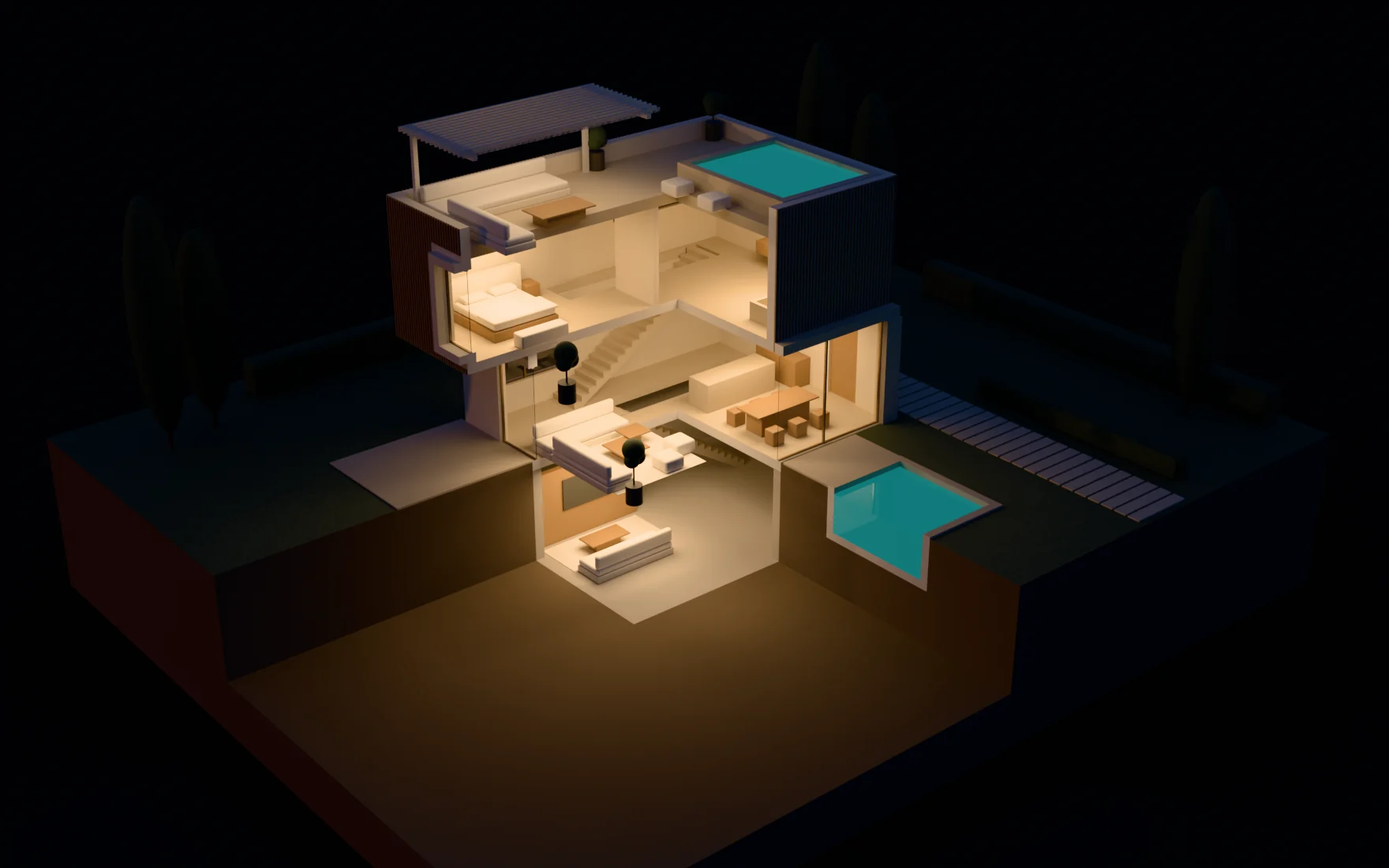
Any object can cut the scene open at render time. It stops rendering and removes what it covers, and your geometry stays as it is. Works with every method, on the CPU and the GPU.
×Quick start
- Pick the object that will cut: an Empty for a flat cut, a closed mesh to cut out a volume.
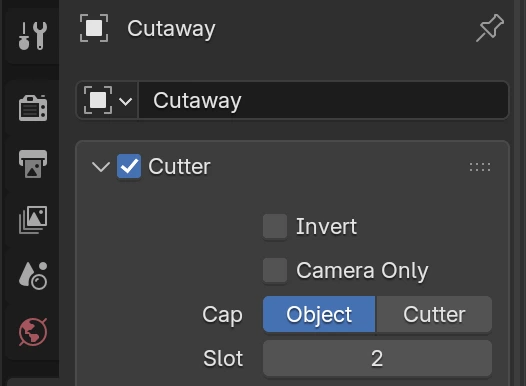
- Object Properties → Cutter: tick the checkbox in the panel header.
- Render, or look in Solid mode: the cut shows in both.
×Cut along a plane
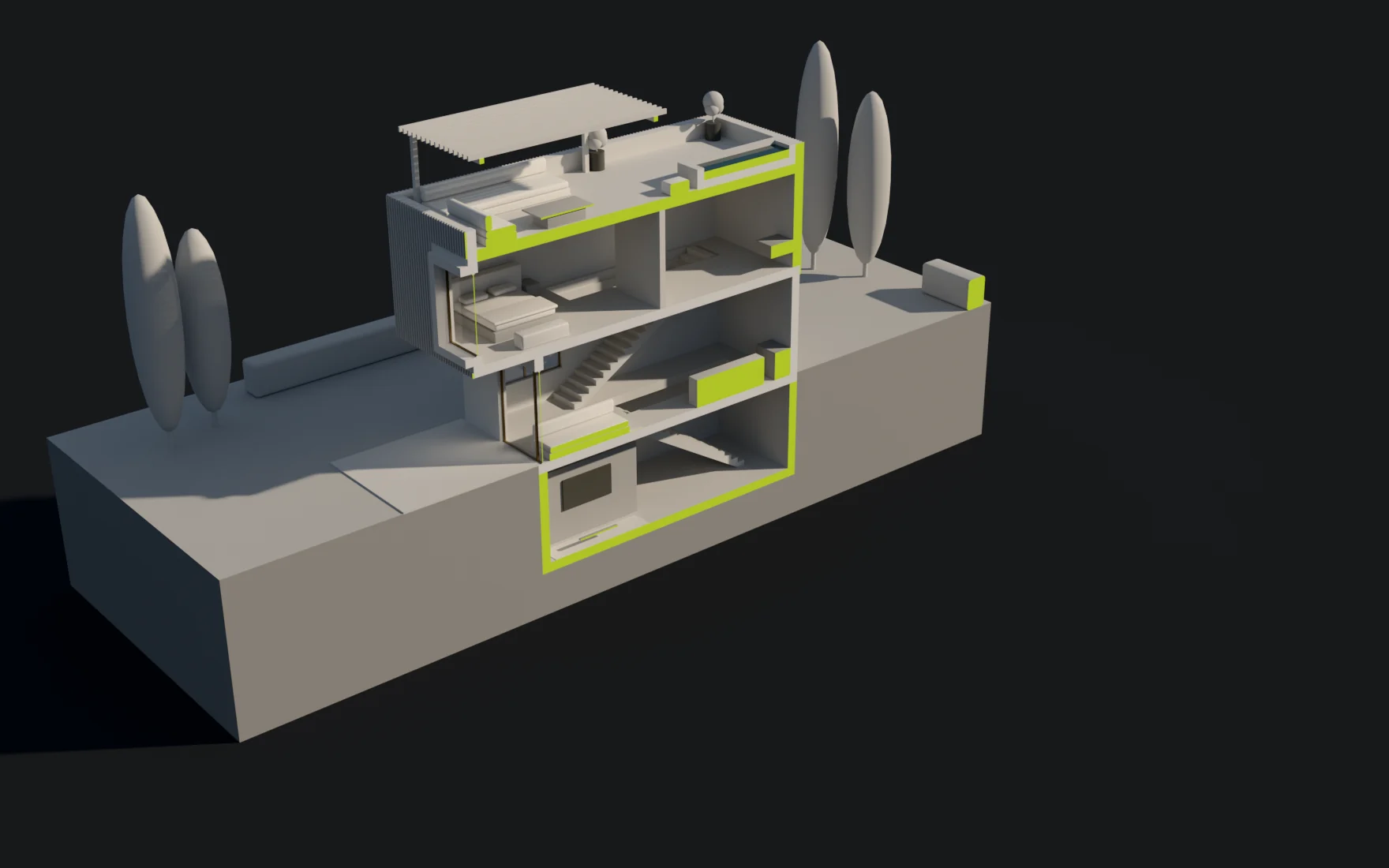
An Empty or a flat mesh cuts along a plane and removes the side its arrow points to. Where a closed object is cut, the cut gets a solid face.
×Cut out a volume
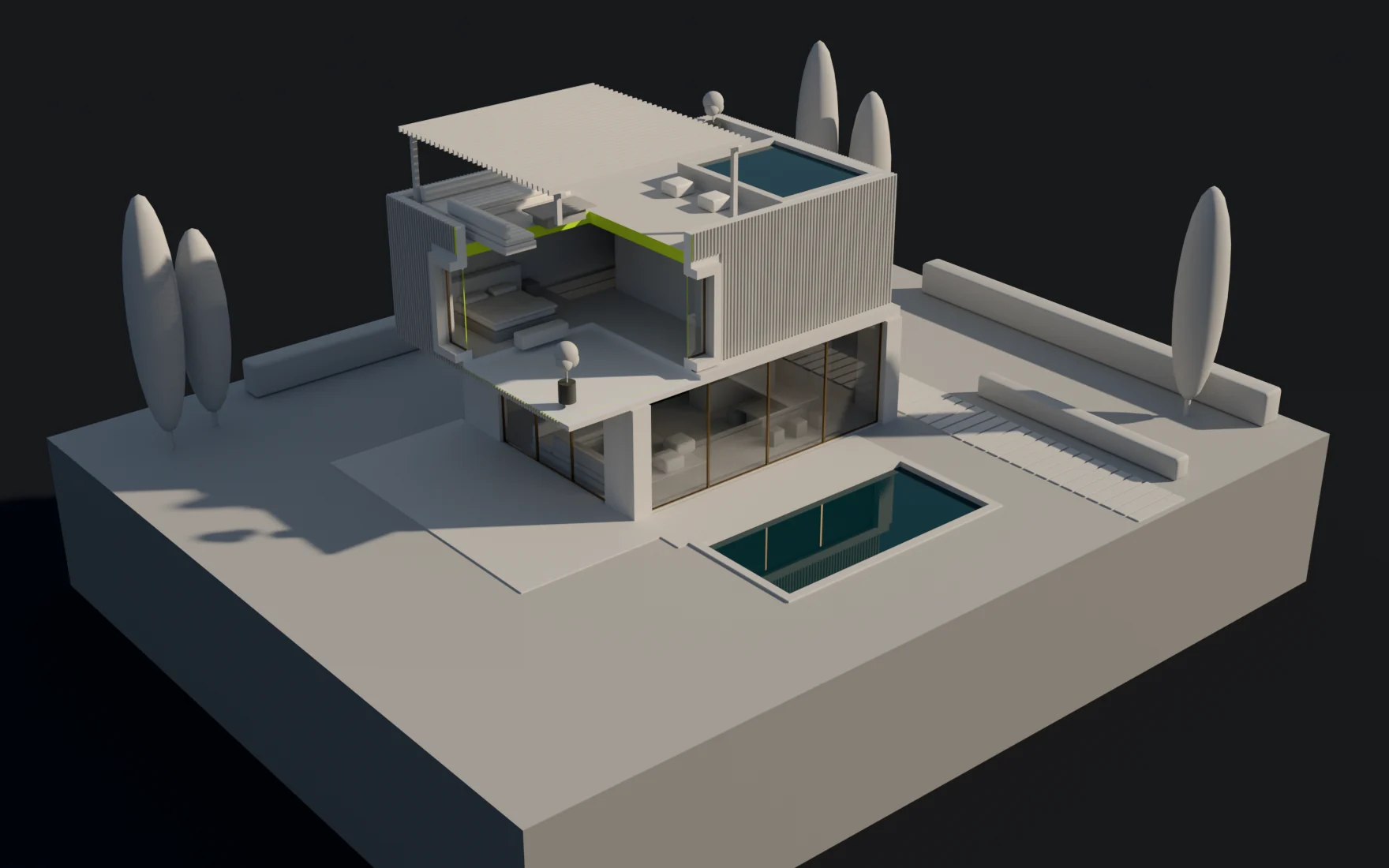
A closed mesh removes everything inside it. Several mesh cutters add up.
×Keep only the inside
Invert keeps only what lies inside a mesh cutter. On a plane it cuts the other side.
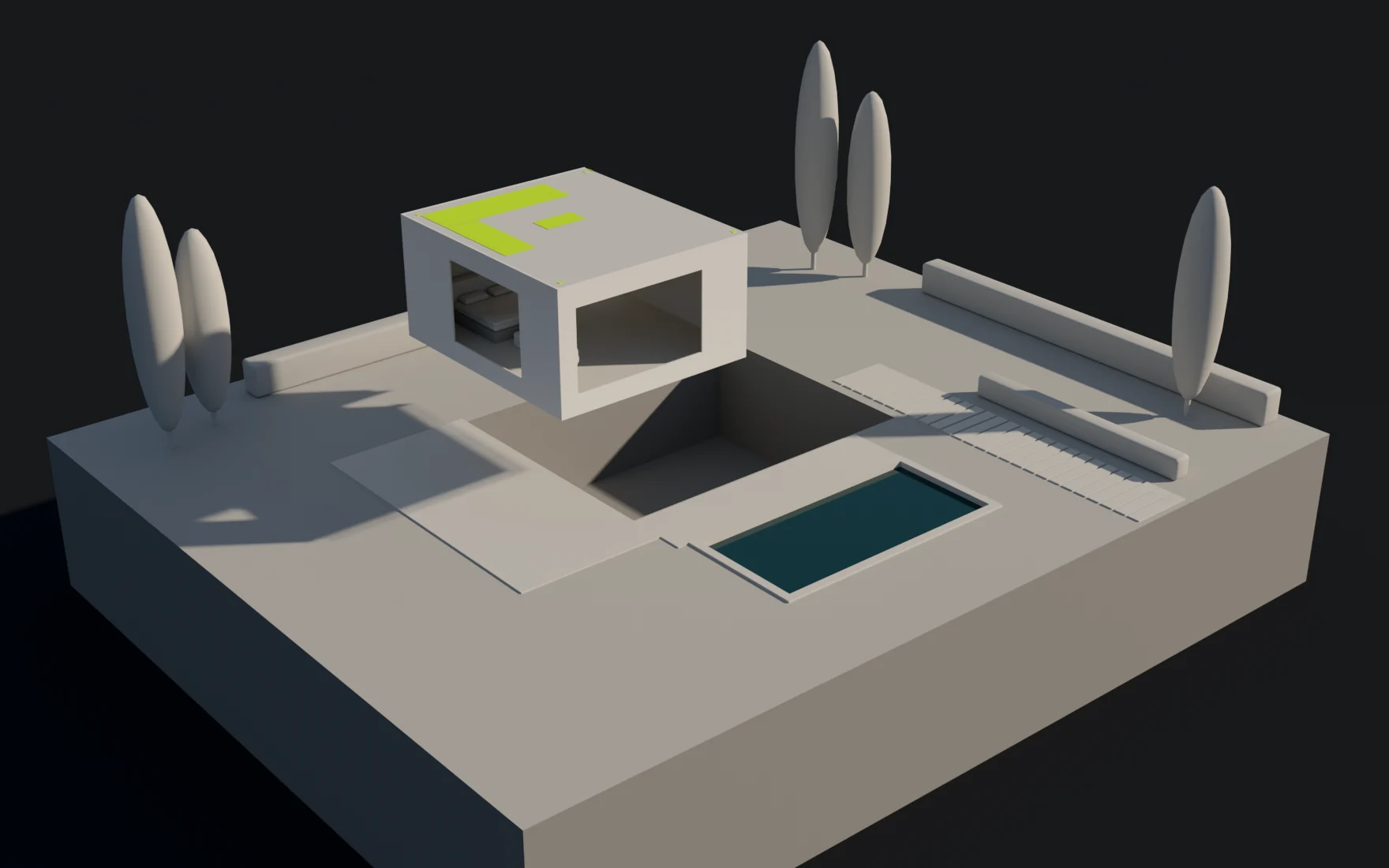
×Combine planes
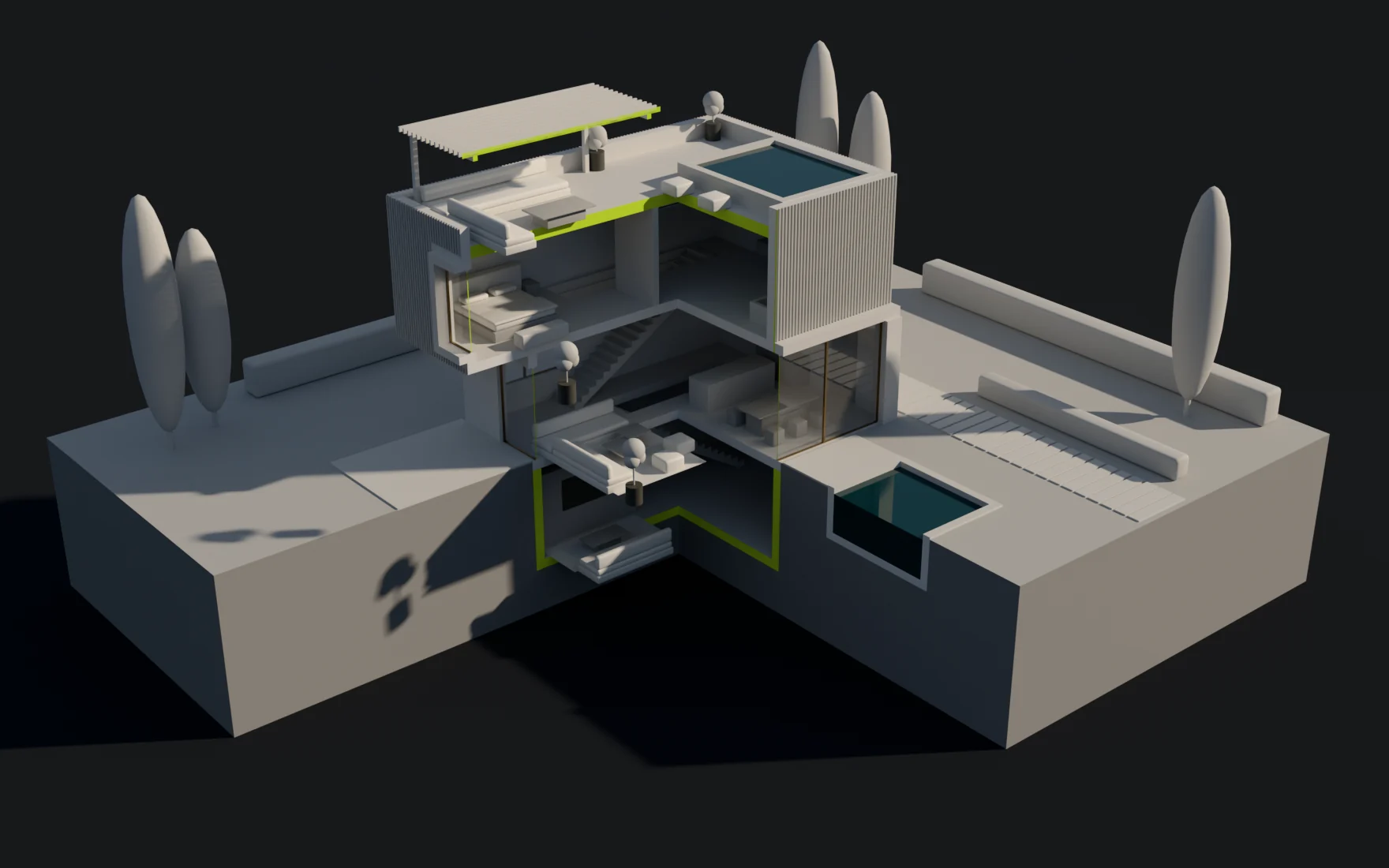
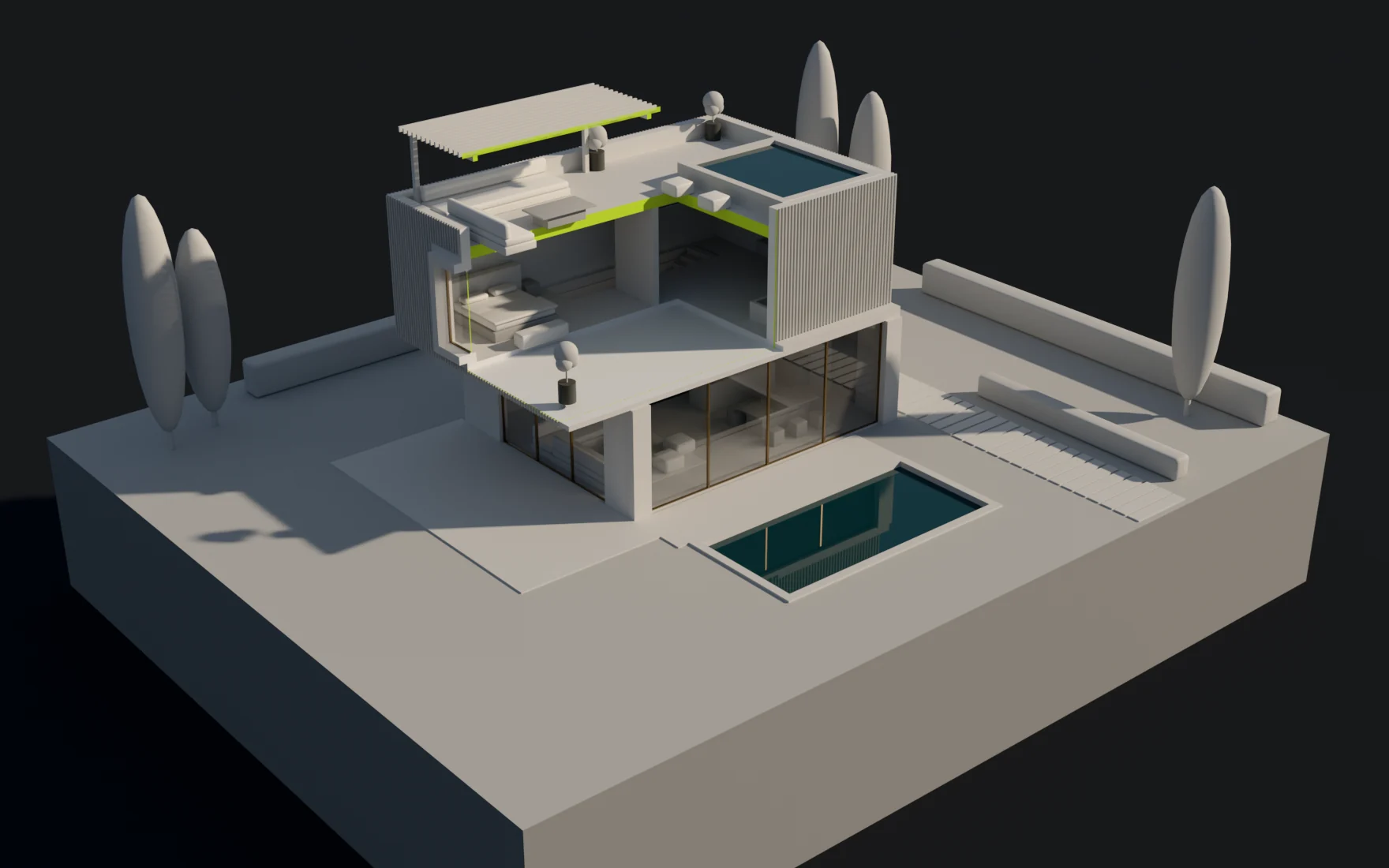
Planes work together: two cut a wedge and three cut out a corner.
×Choose what gets cut
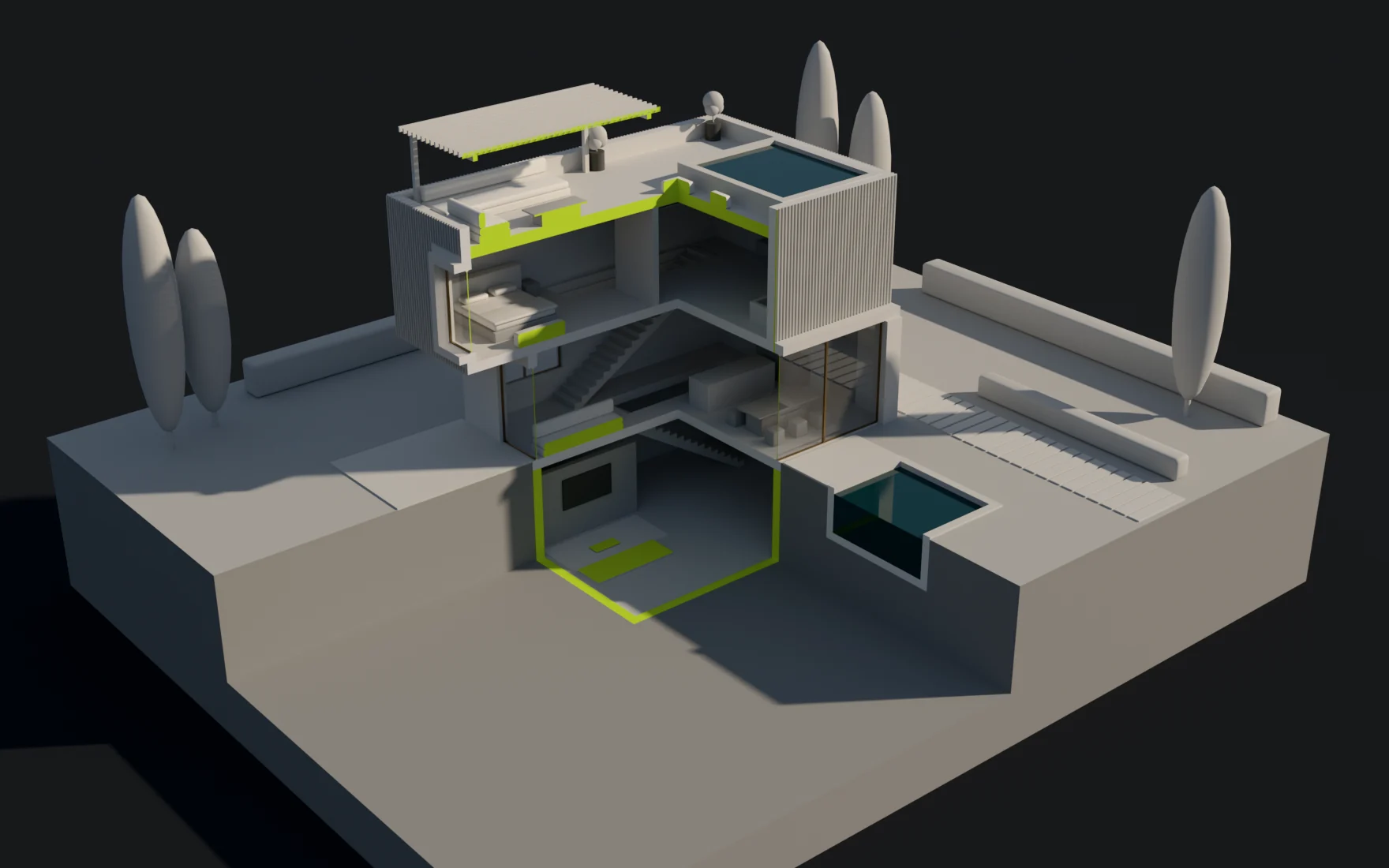
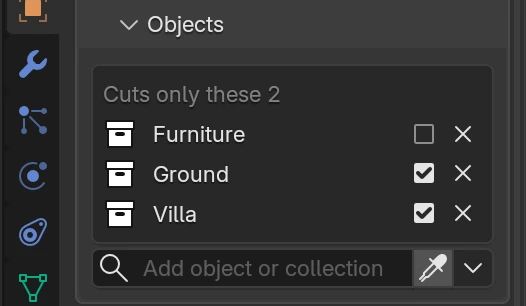
Objects: the objects and collections this cutter cuts or leaves whole. Ticked ones are cut and unticked ones are left whole; once any is ticked, the cutter cuts only the ticked ones. Add them by name, by dragging them from the Outliner, or with the eyedropper: each click on an object in the viewport, or on an object or collection in the Outliner, leaves it whole, then cuts it, then takes it off the list. Esc ends picking. An Exclude collection from 1.0.0 shows here as a collection left whole.
Cut By, in the Object Properties of any other object, lists the cutters in the scene, ticked where they cut that object, so you can change it from there too.
×Keep the light of a closed room
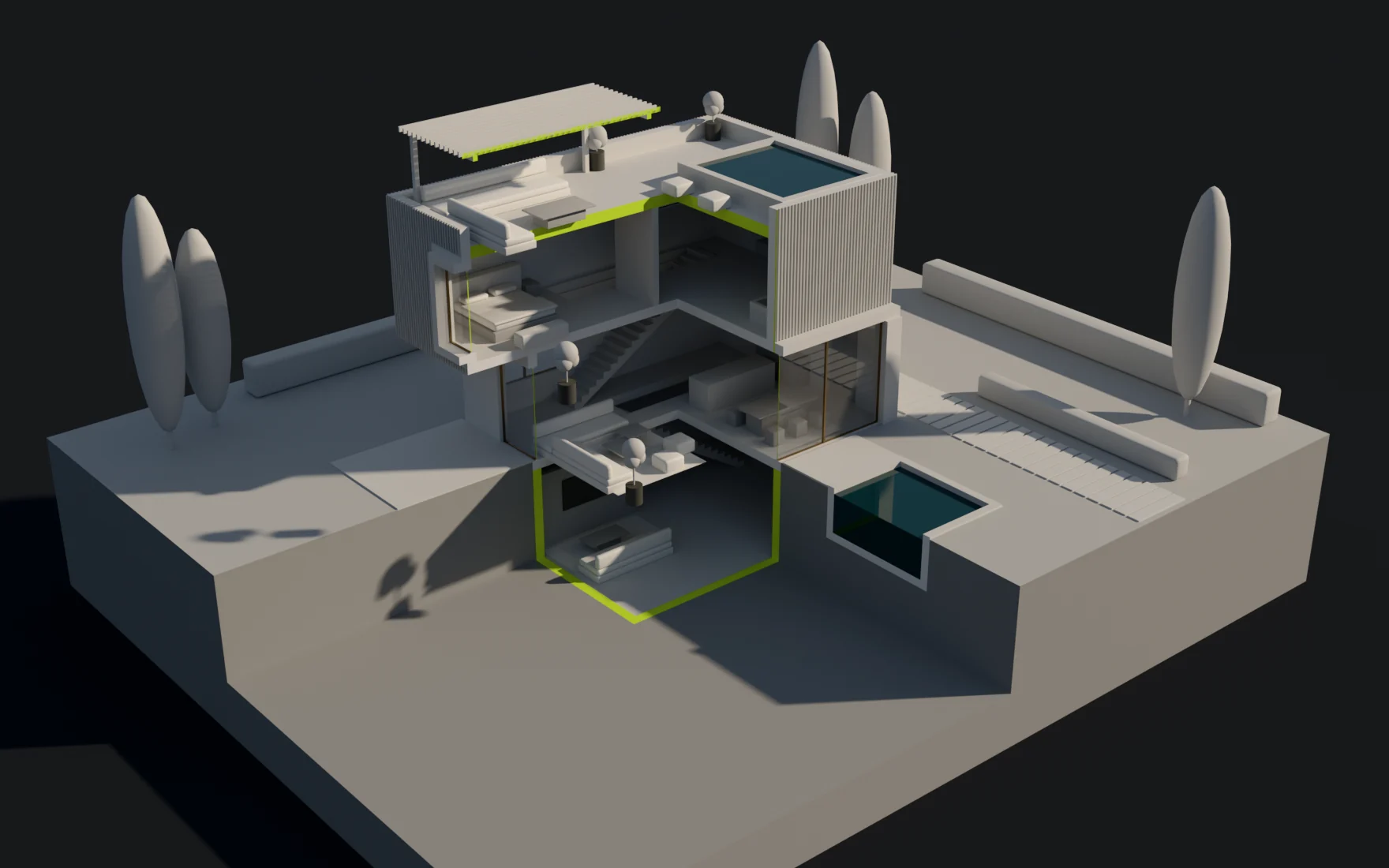
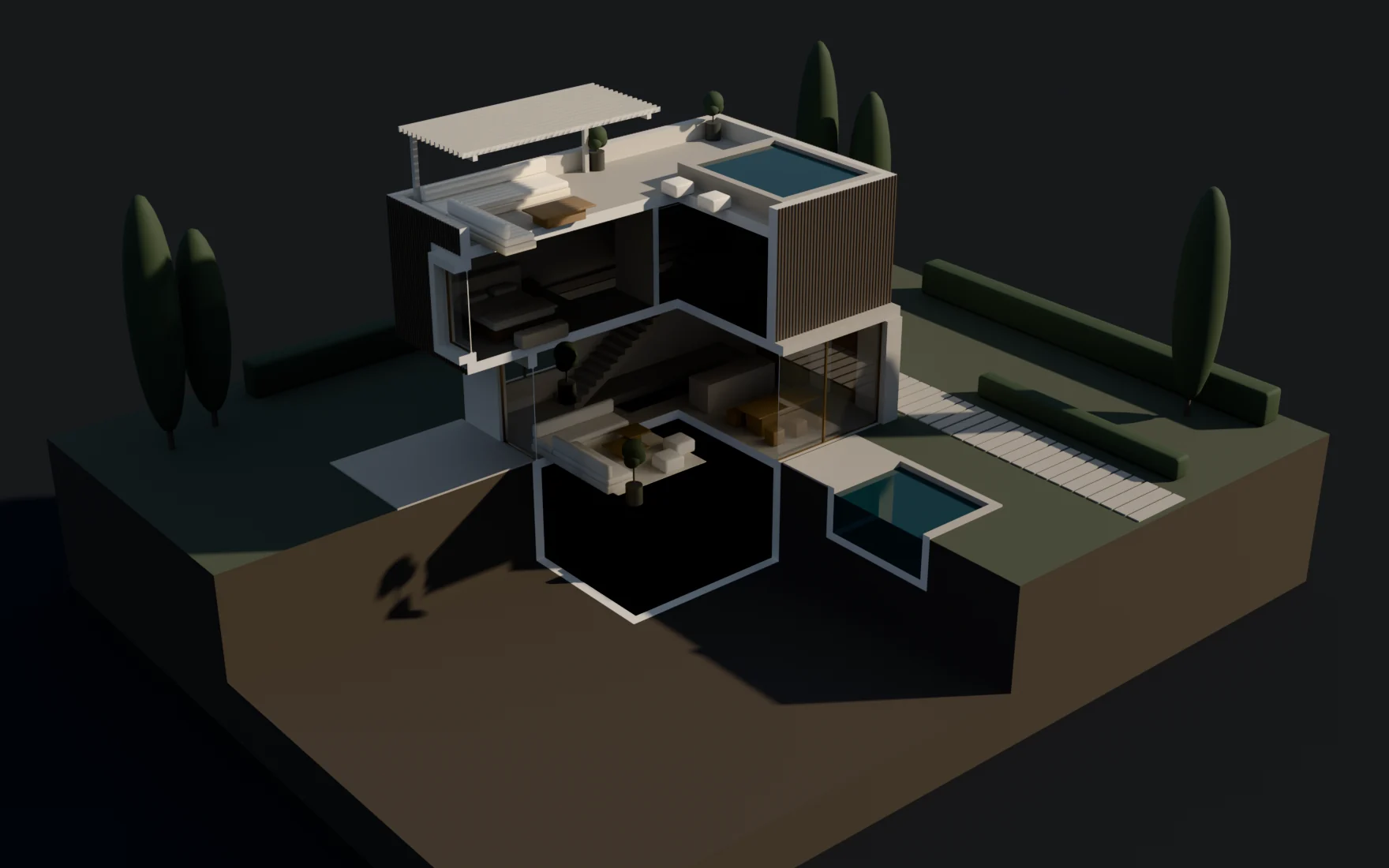
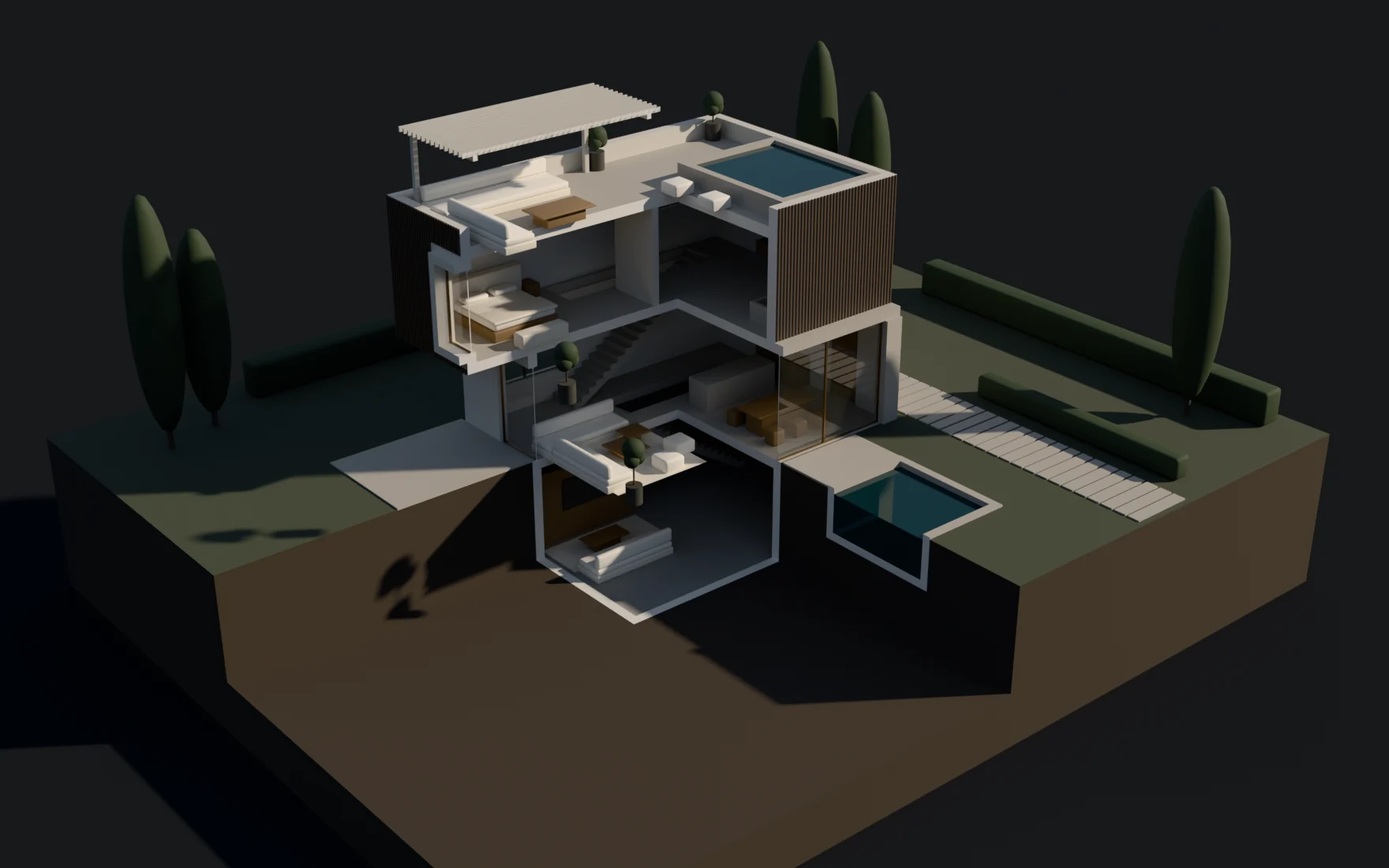
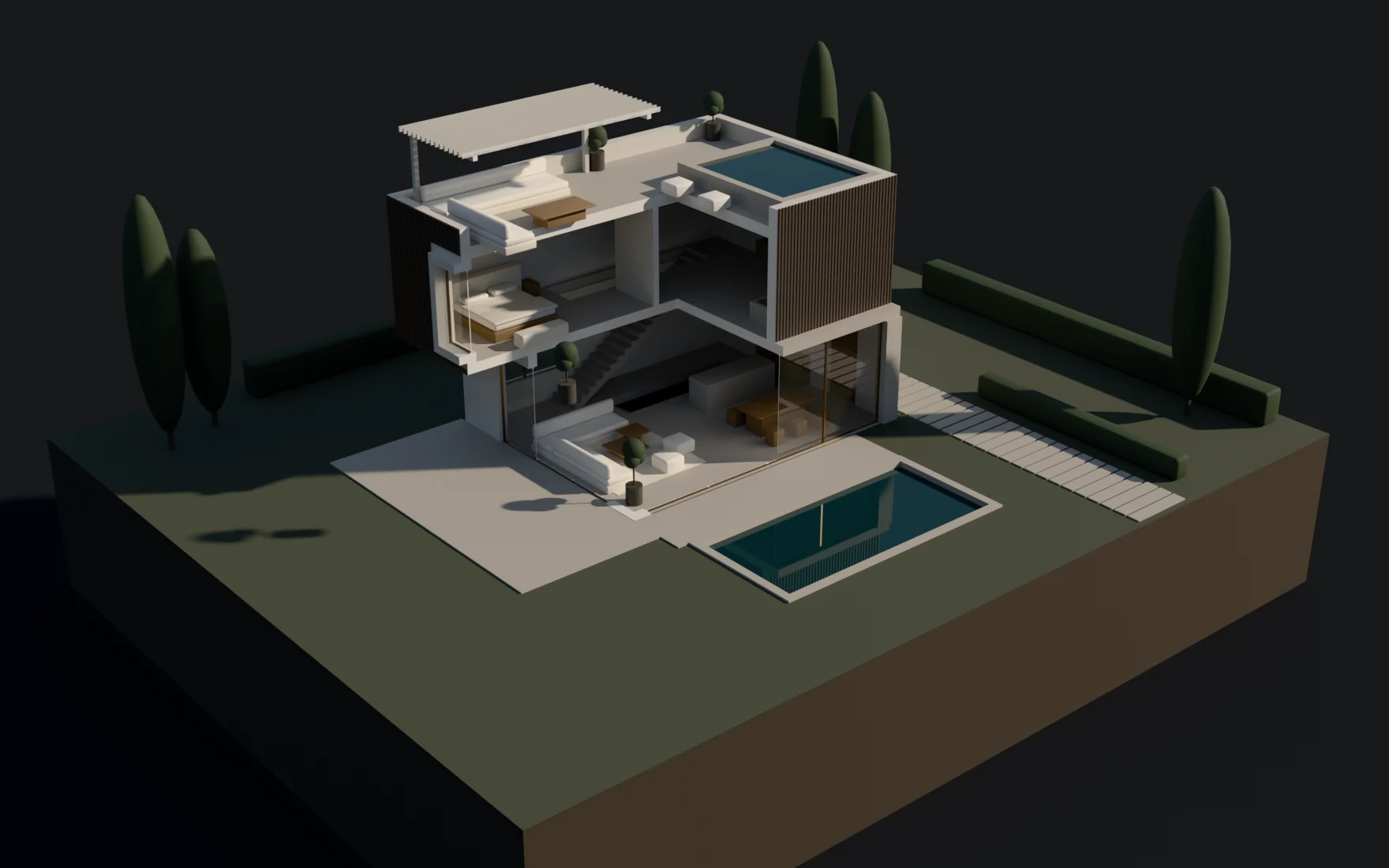
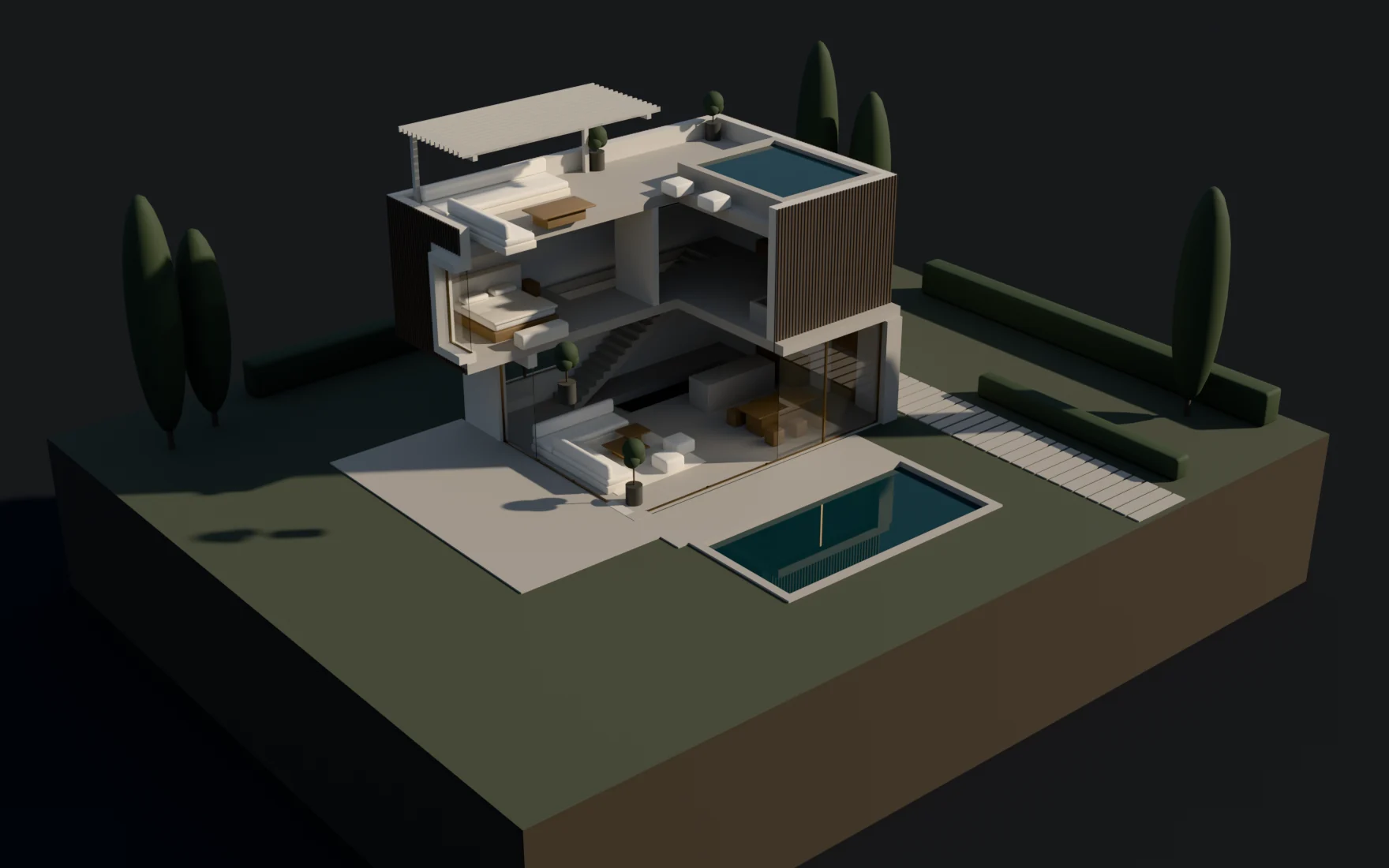
Camera Only: only the camera sees the cut. Light, shadows and reflections still see the whole scene, so a room cut open stays lit as if it were closed.
×Choose the material of the cut faces
Cap: the material of the cut faces. With Object they take the cut object's material, from the faces behind the cut at Slot 0 or from that material slot at a higher number. With Cutter they take the cutter's first material.
×See the cut in Solid mode
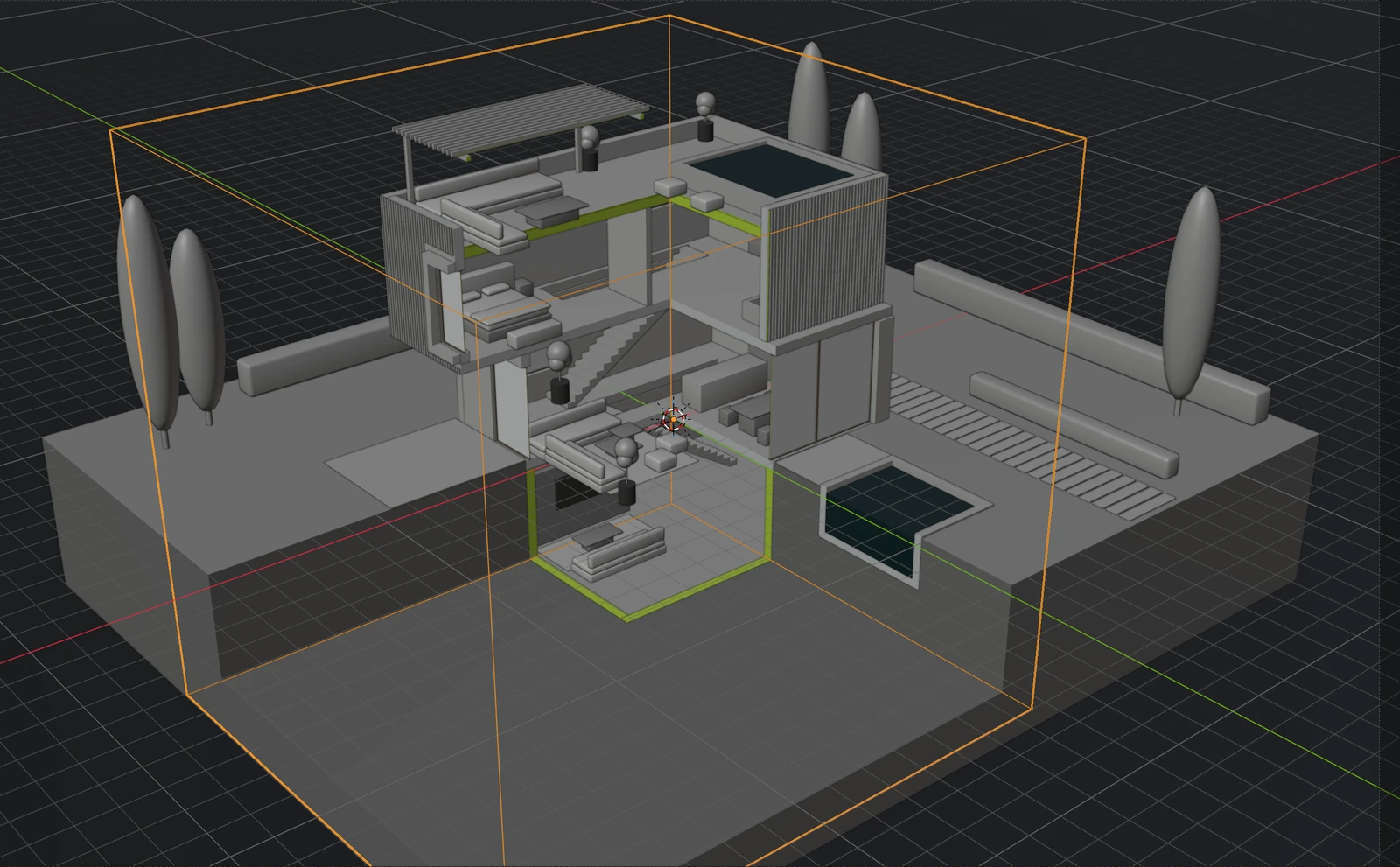
Solid mode shows the cut as the render does, with solid faces where closed objects are cut, and draws the cutters as outlines. In X-ray, or with Backface Culling on, the cut shows without those faces.
×Limits
Cut faces need closed meshes with consistent normals. Subsurface scattering, ambient occlusion and bevel ignore the cut, and in EEVEE a cutter mesh renders as an ordinary object.